Serial Connection
This example covers the ME221 & ME442 Wire-In Engine Management Platform which uses an RS232 Serial Connection.
The wire-in ECUs communicates over a 9 way serial connection. While some older (and industrial) laptops feature this connection, most modern laptops to do not, and so a Serial-to-USB adapter, such as the one pictured below will be needed. The MEITE has been tested with genuine FTDI adapter cables. Note that some cheaper Chinese copies may not work as effectively, so be sure to either purchase a genuine FTDI adapter (around £25) or alternatively order direct from our website.
After connecting the comms lead to the ECU and then via the adapter to the USB port on your laptop, Windows will look to install the drivers for the USB adapter automatically. If it fails (or you have difficulty connecting, please download and install the latest drivers from the FTDI Website.)
The next step, with the MEITE closed, is to turn on the ignition such that the ECU is powered. If the vehicle is fully wired then the fuel pump should prime (showing that the ECU is alive and well).
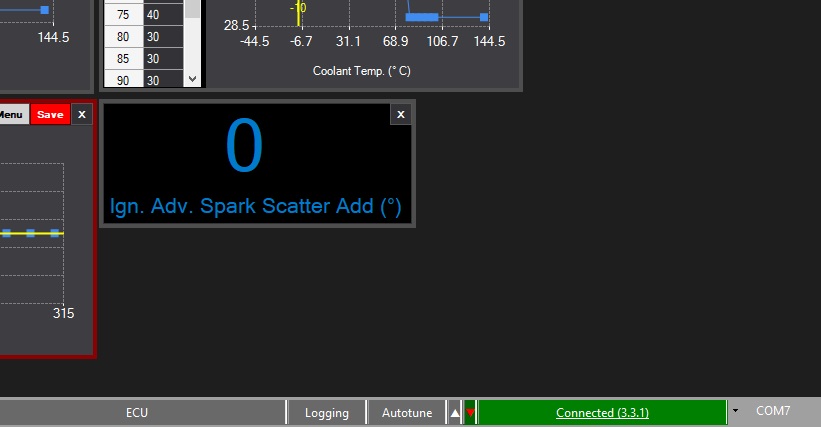
Now, you can launch the MEITE in the usual way,(Program Files>Motorsport Electronics>MEITE) and it should automatically locate the correct communications port, and a green box should be shown in the comms status bar at the lower right of the MEITE, to show that the system is now connected to the controller. After a moment, a progress bar will display as the MEITE downloads the current calibration from the ECU. You are now ready to tune the ECU, in ‘on-line’ mode.
If the green box is now shown, then you use the drop down box in the lower right corner to select a different comm port, and then click ‘Connect’ from the ECU menu or click the coloured box in the to attempt a reconnect. Note if you have more than one comm port, be sure to try the others if you don't get a connection initially.
Once connected the lower right will say Connected as well as the firmware version of the ECU: